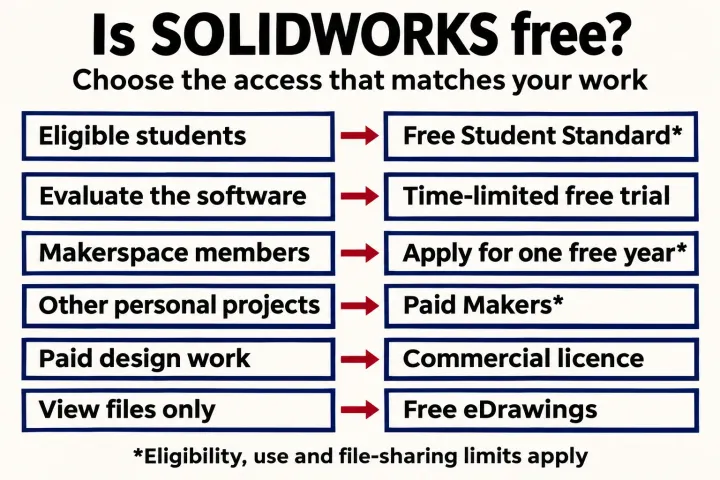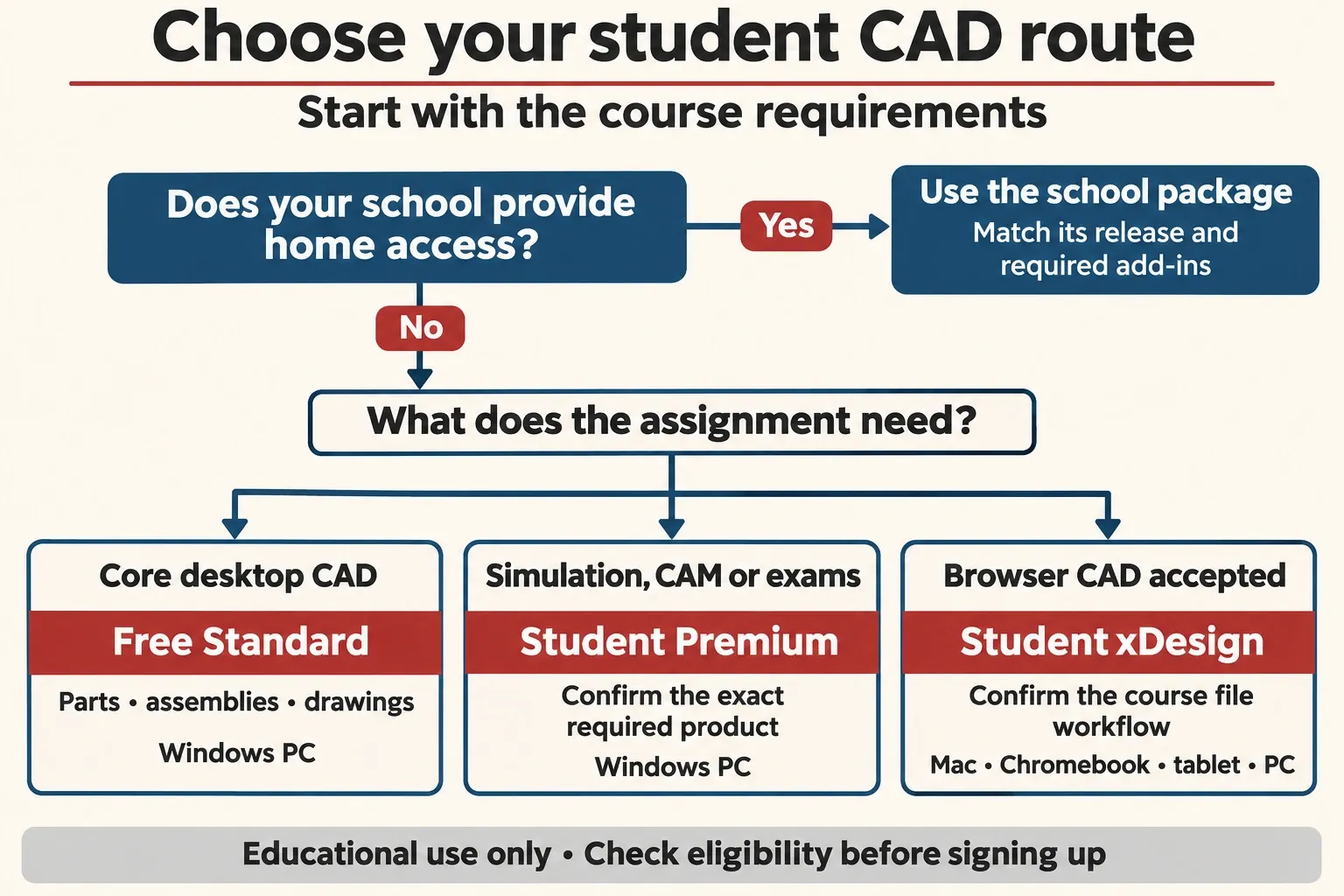
Eligible students can get SOLIDWORKS Design Standard for Students free for a year, with another sign-up available while they remain eligible. I'd check the school's home-use access first: it may already include the Premium tools your course expects. Free Standard is a good fit for learning parts, assemblies and drawings on a Windows PC; it isn't a substitute for a required Simulation or CAM package.
The useful starting question is what you must hand in. A native part with editable sketches, a stress-study report and a browser CAD project need different tools, even when the assignment simply says “use SOLIDWORKS.”
Choose the access route that matches your course
Ask your instructor or IT desk for four things before downloading: the exact product, the release used in class, the required add-ins and the submission format. Also ask whether students receive a home-use serial and certification vouchers. This can save a purchase and prevent a last-minute file problem.
| Your situation | Best starting route | Check before committing |
|---|---|---|
| The school provides home access | Use the package supplied by the school | Which students qualify, the release, modules, expiry and installation instructions |
| You need individual desktop CAD for coursework | Free Design Standard for Students | Eligibility, Windows compatibility and whether core modelling covers the assignment |
| You need additional desktop products or included exams | Design Premium for Students | The precise Simulation, CAM or other product required; existing school entitlement |
| You use a Mac, Chromebook or tablet and the course accepts browser CAD | xDesign for Students | Whether the instructor accepts that product and its file workflow |
| The work is for an employer, client or research project | Ask for the appropriate separate licence | Permitted use; student enrolment alone doesn't authorise this work |
The official student offers list US single-user prices of $60 a year for Design Premium and $60 a year for xDesign, excluding local taxes; local prices appear in the cart. Standard and Premium are installed desktop products with local storage and a machine-locked licence for one device. xDesign runs in a browser with cloud storage. It is a separate CAD route, so “works on a Mac” doesn't answer whether it meets a desktop SOLIDWORKS assignment.
If the school already gives you Premium for home use, SOLIDWORKS recommends using that access. A university's download instructions apply to its own eligible users. Its serial number, network-server details or installation rights aren't a general free licence for everyone.
Don't substitute a Makers licence for student collaboration
SOLIDWORKS for Makers is a separate personal-use offering. Its official file restrictions say Makers native files, including SLDPRT, SLDASM and SLDDRW, open only with a Makers licence and cannot be opened in commercial or academic SOLIDWORKS. Neutral formats such as STEP can be exported, but that doesn't deliver the same native coursework package. If the instructor must inspect your sketches, features and assembly relationships, choose the required student or institutional route.
What free Standard includes, and when Premium matters
Standard covers the core model-to-drawing workflow: parts and assemblies, 2D drawings, sheet metal and weldments. You can learn the relationships between a sketch, a feature and a downstream drawing without purchasing an advanced analysis package. For a bracket assignment, that means creating the part, defining the dimensions that should control it and producing the required views.
The free-offer FAQ excludes the separate SOLIDWORKS Simulation, CAM and Visualize products and certification vouchers. The Standard installation guide also excludes add-ins such as Toolbox. Don't choose the free package on the assumption that every product visible in Installation Manager is included.
Premium for Students bundles additional desktop tools. The offer lists structural, flow and plastics simulation, rendering and 2.5- and 3-axis CAM. Its comparison with Standard also lists routing, advanced surface flattening and desktop products including Electrical and Composer. A bundle name still isn't a course specification: ask which module and study type the instructor expects, then confirm that entitlement before paying.
These examples make the choice more concrete:
- Model a small vice and produce its drawings: start with core CAD. Check whether the course supplies required library components rather than assuming Toolbox is available in free Standard.
- Submit a load case, mesh and stress results: ask for the exact Simulation product. A shaded model or a basic analysis utility doesn't replace the assigned study workflow.
- Create a CNC toolpath: confirm the CAM package and the school's postprocessor and machine requirements. Buying access doesn't establish that the output is ready for a machine.
- Prepare for an exam: check school vouchers first, then compare the student bundle with buying an attempt separately.
I'd consider Premium for certification when no school voucher is available. The student certification FAQ lists separate attempts at $99 and includes two attempts, CSWA and CSWP, with Premium. At the advertised US student price, the annual package costs less than one separate attempt. Buy it when you're ready to use the access, and read the voucher conditions supplied with the offer. Our CSWA preparation guide covers the exam task separately.
Check eligibility and permitted use before signing up
The individual free-licence form defines a qualified student as someone currently enrolled in a formal secondary or post-secondary educational institution. Enter your actual school and current details. Self-directed hobby learning doesn't by itself meet that definition; the other free-access routes have their own eligibility and use limits.
There is a real age mismatch to resolve for younger students. The form permits ages 13–17 with a parent or legal guardian involved, while the linked free student agreement defines its customer as at least 18. If you're under 18, involve your parent or guardian and ask SOLIDWORKS to confirm the applicable arrangement before accepting. Don't treat the checkbox as an explanation of who enters the agreement.
The agreement limits this offering to personal learning under an educational institution's supervision. It excludes commercial work, consulting, work for hire and corporate or government internships; the sign-up confirmation also excludes research applications. A paid client part, an employer's production model or a funded research task needs its own licensing decision. Being a student doesn't change the purpose of that work.
For an internship, investigate the separate SkillForce route for accepted interns and co-op students. It offers access for the internship's duration. For a student team or design competition, the same official page has sponsorship routes; check the team's approved access instead of assuming an individual learning licence covers every activity.
Keep educational and commercial files separate. The free agreement allows educational content to carry a watermark and prohibits removing it. A neutral export isn't permission to use a student design commercially. If an employer needs an existing course model, settle both usage rights and the receiving system's requirements before sending it.
Make sure the computer supports the required release
For SOLIDWORKS 2026 desktop, the system requirements call for 64-bit Windows 11 on an x86_64 Intel or AMD processor. They list 16 GB of RAM, recommend 32 GB and SSD storage, and point to certified graphics cards and drivers. Windows Home editions and Windows To Go are unsupported. An education licence doesn't relax those platform requirements.
Use the requirements for the release the course supplies. Windows 10 support ends with SOLIDWORKS 2025 SP5; a machine that meets the older release's requirements isn't thereby supported for 2026. Check the Windows edition as well as the version before downloading several gigabytes.
A Mac has no native SOLIDWORKS Design desktop application. xDesign can run in its browser, but switching product is only useful if the course accepts the resulting work. If native desktop files are mandatory, ask the school about its supported Windows facilities or remote-access provision. Our SOLIDWORKS on Mac guide explains the platform choices; the computer guide covers hardware selection.
Before installation, record the course release and service pack, check available local storage and keep a copy of existing coursework. If you're replacing an older installation, preserve the original files and any templates you need. Don't make your only copy of an assessed model the first file you open and save in a different release.
Get the correct download and serial number
If the school supplies access
Follow the school's instructions for your own entitlement. It may provide a student serial, an SDK/SEK identifier or a different institutional access method. If the instructions send you to Community Download, the form asks whether you already have a serial beginning with 9020 and provides a field for an SDK-ID, SEK-ID or trial code. Choose the release your licence and course require.
The download form delivers software; it doesn't grant commercial rights or create an entitlement to every module. If you don't have the required identifier, ask the school for it. A code copied from another university's instructions isn't the next step.
If you're using individual free Standard
- Open the official Standard student form. Have an email address you can receive mail at and your school or university name ready.
- Enter the requested email, school, country, education level and field of study. Read the linked agreement and offer terms, then complete only the eligibility, use and age confirmations that apply.
- Continue through the form and keep the download link, unique serial number and installation guide. The form says the installation details and serial are also emailed to you.
Save that email privately. It identifies the access you received and is useful if activation fails. Don't post the serial in a public forum or an error screenshot. If the email hasn't arrived, check the address and spam folder before starting a different licence purchase.
Install free Standard, then verify activation
The sequence below follows the official Standard for Students installation guide. Keep the installer files in a local folder you can find again, and follow your school's separate instructions if it supplied a different package.
- Extract and run SolidWorksSetup.exe from the supplied download. In Installation Manager, choose Install on this computer.
- At Serial Number, enter the supplied serial under 3D Design > SOLIDWORKS Design. Leave the other product serial fields blank.
- Continue through the system check. Review the products selected for the entitlement and the installation locations on Summary. The guide says entitled products are selected automatically; separate serials aren't required for each entry.
- Read and accept the installation terms if you agree, then select Install Now. Wait for completion and select Finish.
- Launch SOLIDWORKS Design and complete the first-launch activation prompts. Reaching the end of the download is different from completing installation and activation.

Before a deadline, open a new part, save it to a coursework folder and reopen it. Then check a small file supplied by your course. These are useful acceptance checks for your installation and file workflow; a successful blank part alone doesn't confirm that a required add-in or class assembly is ready.
If something is missing, diagnose the right stage
Separate an entitlement problem from an installation problem. Reinstalling free Standard won't add a product the licence excludes. When an entitled add-in is installed, Tools > Add-Ins lets you load it for the current session under Active Add-ins, or for future sessions under Start Up.
| What you see | Check first | Useful next action |
|---|---|---|
| Simulation, CAM, Visualize or Toolbox is missing in free Standard | The exclusions in the free offer and installation guide | Ask whether school Premium access or the paid student bundle supplies the exact required product |
| An included add-in has no toolbar or study tab | Whether it was installed and appears in Tools > Add-Ins | Load it for the session; if absent or licensing fails, check the installation and entitlement with support |
| The serial is rejected or an expiry message appears immediately | The serial's package, release and validity, against the download you used | Keep the exact error and licence email; ask the school or student support to resolve the mismatch |
| Installation fails | The exact error, system requirements and location of the downloaded files | Keep the installation logs; use the relevant support instructions instead of repeatedly downloading another release |
| Your file works but the instructor can't use it | Both releases, required file type and all assembly references | Agree the handoff format and send a complete package; don't assume a screenshot meets the assessment |
The Student Edition technical FAQ tells support callers to include installation logs, the error screenshot and serial information. For download and installation problems, it locates the logs under %appdata% > SOLIDWORKS > Installation log. Share those details through the appropriate private support channel. The free offer's direct help is limited to installation and licensing; modelling questions use its self-help resources.
Agree the file handoff before building the project
For assessed native CAD work, I'd match the course's release from the beginning. That keeps the instructor's requirements in view while you build the feature tree. Ask whether the submission needs the native part, the assembly and its component files, a drawing, a neutral export, a PDF or a combination. A picture of the finished shape doesn't preserve the relationships the assessor may need to inspect.
For an assembly, use File > Pack and Go to collect the model and its related files into a folder or ZIP. Review the references and include the required drawings rather than emailing only the top-level assembly. Open the packaged copy from its own folder to check that it doesn't depend on a file you left elsewhere.
Keep the original native files when making a delivery copy. If the instructor uses an older release, ask for an accepted workflow before saving over anything. SOLIDWORKS has version-specific provisions for saving previous versions, with compatibility checks and conditions. Don't assume any newer file can simply be renamed or saved for any older installation.
Keep education-use markings and restrictions with the project. File transfer, a successful open or a change of extension doesn't turn coursework into an unrestricted commercial model.
Start learning with a model you can change
The student help centre links to free MySolidWorks training. The academic curriculum also contains projects and learning paths, while some advanced institutional resources require an active education subscription. Start with resources available to your particular access route.
For your first practice piece, choose a simple part with a clear purpose: a mounting plate with a thickness, an outside size and a hole pattern. Define the dimensions that should drive it, add the feature and make a drawing. Change the outside size, rebuild and check whether the holes and drawing respond as intended. That small revision teaches more about design intent than collecting commands without a model to explain them.
Next, place two parts in an assembly and define their intended relationship. Leave advanced analysis until you can identify the geometry, materials and conditions it would analyse. Treat this as a learning sequence you can repeat with course exercises, rather than a claim that finishing a tutorial establishes engineering safety.
Plan for renewal and the end of the course
Free Standard provides one year of access. The renewal FAQ says eligible students can complete the same form again and may be asked for proof of student status. School-provided licences follow the school's arrangements; don't assume the individual sign-up renews an institutional serial.
Keep the licence email, note the expiry shown for your access and arrange the next term before a submission deadline. Back up the parts, assemblies, drawings and templates you need, with the course release recorded alongside them. If you're graduating or moving into paid work, choose an appropriate new licence before continuing that work. Keeping the files is part of the handoff; retaining a right to run the software is a separate question.